

T-Bird ID: Your ID "card" is now on mobile!
Your SUU T-Bird ID is going fully digital!
Your SUU T-Bird ID is now available for you to use straight from your phone. This will make it possible to simply tap your iPhone, Apple Watch, Samsung Galaxy, or other eligible Android phones at readers across campus to conveniently use your T-Bird ID. You will also be able to view your balance for dining dollars, open doors, and more.
Jump to:
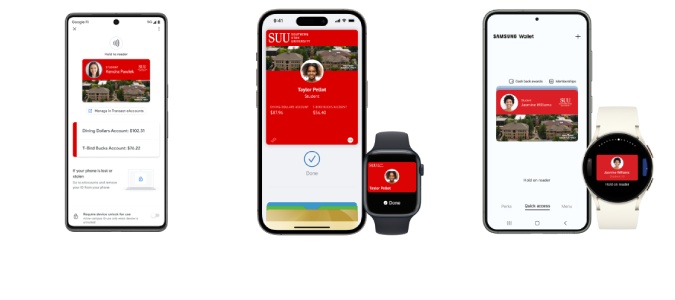
Photo Requirements
A photo is REQUIRED to begin the process of activating your T-Bird ID. If you are brand new to SUU, you will need to upload a photo. If you have been at SUU for a while and never got an ID, you will need to upload a photo.
Photo Requirements
- Your photo should be a current color photo of you.
- A plain, neutral colored background is preferred.
- Centered and front view of full face.
- Cropped from just above the top of the head to the collarbone. Not full body.
- Eyes open and visible.
- Wear prescription glasses if you normally do so.
- Maximum photo size of 3200 x 3200 pixels. JPEG, GIF and PNG are supported.
- Don't wear hats, sunglasses, or other items that obscure the face; glare on glasses; shadows; other visible people or objects in the photo; inappropriate expressions. All photos are subject to approval.
- No copyright pictures will be allowed.
Your photo will need to be approved before you can establish your T-Bird ID. Wait for the photo approval email before continuing to the next steps.

Setup Your Device
There are a few apps that will need to be in place and some setup that needs to happen before anyone can use their mobile credential. And remember, if your photo ID is not done first, you will not be able to proceed through the steps correctly.
Questions specific to the operation of each platform's digital wallet are best addressed directly by the manufacturer:
Choose your Platform
Frequently Asked Questions on SUU T-Bird ID
Here, you'll find answers to common questions, organized into categories for students, employees, and security-related inquiries. If you don't see your question listed, you can use the provided form to submit it. We'll respond directly or escalate it into a support ticket if needed. As we receive more questions, we'll keep updating this page with new answers.
General Questions about the T-Bird ID
If you are having trouble (or helping someone else with troubles), here is what you need to do:
- Verify that you have uploaded a photo
Mobile credentials cannot be established without a photo and it may take up to 24 hours for your photo to be approved. - Delete and Reinstall the apps
Completely uninstall both the Microsoft Authenticator and eAccounts apps from your device. Restart your device, then reinstall the apps and start the process again. You should not have to do this multiple times, if you've tried this step more than twice, move on to the next step. - Call for help!
At this point, we probably need to submit a help ticket and look for errors or locks on an individual's account. You can submit an IT Support Ticket directly or email tbirdid@suu.edu and we will help direct your question.
Contact the Student ID Card Office at tbirdid@suu.edu, come to The Nest, or contact the IT Help Desk to notify us so we can deactivate the T-Bird ID. Be sure to specify whether the physical card, watch, and/or phone version of the card should be deactivated. Any device not specified to be suspended will remain active.
In the Transact eAccounts app:
- Click the settings gear in the upper right corner.
- Select the Card Management option.
- Choose the credential you want to deactivate and toggle it off.
- You will receive a confirmation email. Only the selected card will be deactivated. All other credentials will remain active.
In the Transact eAccounts web version:
- Select Card Services
- Select Deactivate Card
- Select the credential to deactivate and click on “Deactivate Card”
- You will receive a confirmation email. Only the selected card will be deactivated. All other credentials will remain active.
Additional instructions for Lost/Found Apple devices and Find My iPhone
Additional instructions for Lost/Found Samsung devices and SmartThings Find
To reactivate a found device that was suspended, perform the following steps:
In the Transact eAccounts App:
- Click the settings gear in the upper right corner.
- Select the Card Management option.
- Choose the credential you want to reactivate and toggle it on.
- You will receive a confirmation email. Only the selected card will be reactivated.
In the Transact eAccounts Web Version:
- Select Card Services
- Select Activate Card
- Select the credential to reactivate
- You will receive a confirmation email. Only the selected card will be reactivated.
Student Questions Regarding the T-Bird ID
- On-Campus Dorms
- On-Campus Dining Hall
- Any SUU Event – ie. Athletic Games, the Scream, Bread and Soup Nite, Casino Night etc.
- SUU Bookstore
- Anywhere that your ID is required for a school function
- Account balances are currently only displayed on Apple & Samsung Galaxy devices. If you do not have these devices they will not be displayed on your SUU T-Bird ID.
- If your account balances are $0, they will not display until funds are added.
- If you have available funds that are not displaying, please email tbirdid@suu.edu or reach out to your Ace.
If you are not an incoming new student and have already printed a physical T-Card you may still use your T-Card but it is not required once you have successfully uploaded your mobile SUU T-Bird ID.
Yes, your physical T-Card will continue to function after you have added your SUU T-Bird ID to your device. Remember, the Mobile ID is a privilege and benefit of being part of the SUU community. Anyone found to be misusing their physical card or Mobile ID will be subject to the applicable Code of Conduct or HR policies regarding fraud and/or misconduct.
Yes, you will need to install the updated version of the Transact eAccounts mobile app.
On your device, visit the App Store or Google Play Store and search Transact eAccounts. The store will prompt you to install any required updates.
Confirm your device is not in Airplane Mode or experiencing any other service interruption. Updates cannot be made when there is no connecting service to sync data between Transact eAccounts and your device. The Transact eAccounts app will display the most current information.
If you recently updated or got a new phone, and your mobile credential is no longer working, please visit The Nest to get your phone reset.
Employee Questions Regarding the T-Bird ID
If you already have access to a door with your physical ID card or a key fob, your new T-Bird ID should automatically work as a key. This process may take up 2-3 business days to process. If after that time your T-Bird ID isn’t working, contact the SUU Lock Shop at lockshop@suu.edu.
You do not have to enable this immediately, your physical card will continue working for a while. But eventually all card readers on campus will be updated and would require the digital ID.
The Marketing Communication office holds an Employee Headshot photo day most months. You can watch for those in the events calendar feed on the Faculty & Staff web page. Once their office takes the photos, the photos are processed and ready for use on the main website, the directory, and added to your T-Bird ID.
 Download the
  Download the
  Verify that the credential is now in your
  If you don't have