

Zoom AI Digital Note Taking Accommodation
The Disability Resource Center at SUU offers students who need digital note taking accommodation with tools through Zoom AI.
Students who have an approved accommodation for Digital Note taking or recordings should not record lectures prior to activating their accommodations for the given semester.
Students approved to record course lectures as a disability-related accommodation should use recordings and transcripts only for their own educational purposes and only in connection with their disability accommodation. Recordings and transcripts may not be shared, distributed, posted, or provided to others. Students should delete all course recordings and transcripts after the course has been completed.
Please read these steps to set up digital note taking with Zoom.
Zoom AI Setup Guide
Before you begin, please download Zoom Workplace from the App Store or Google Play.
Step 1: Accessing Zoom through the SUU Portal
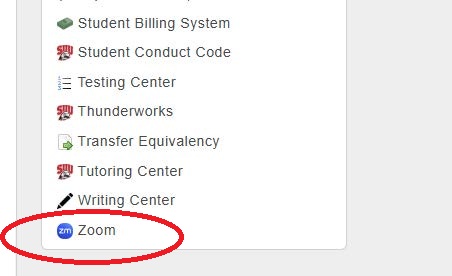
- Log in to your mySUU portal. Under Resources, click the Zoom link.
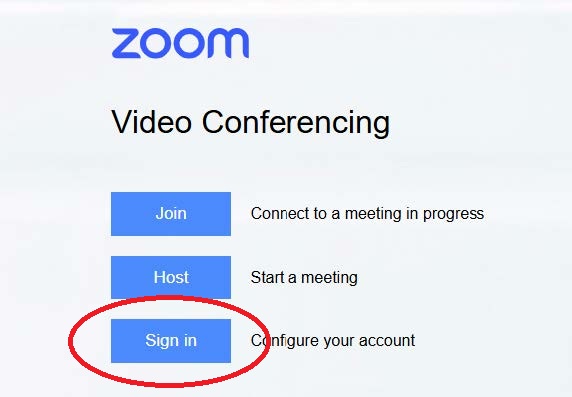
- Click the "Sign in" button to configure your account.
Step 2: Configuring AI and Recording Settings
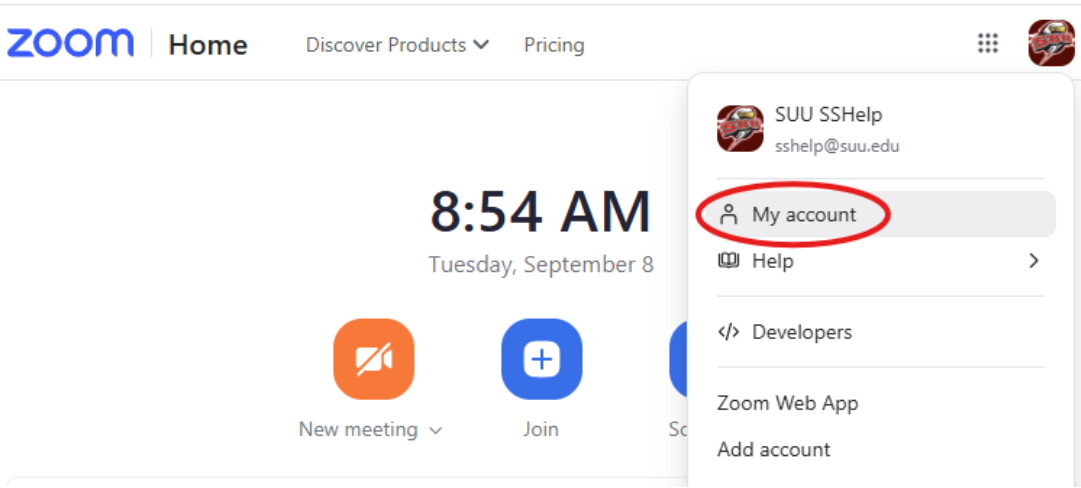
- In the right-side, click your account, scroll down, and click "My account."
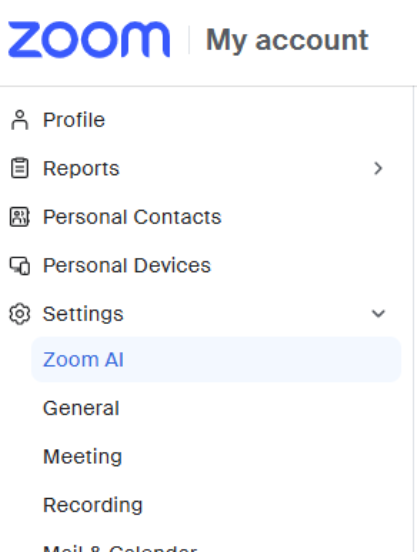
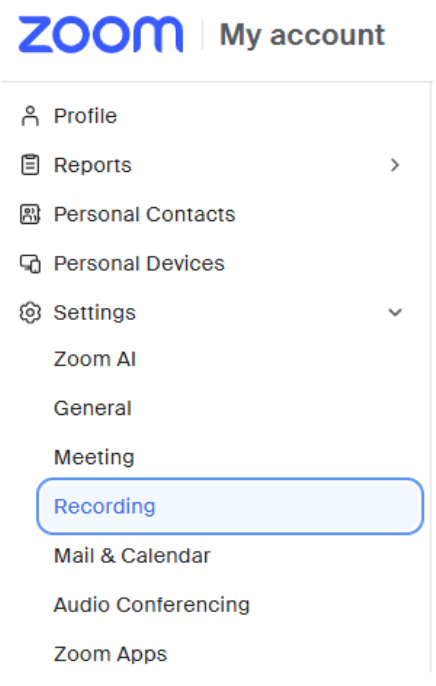
- On the left-side bar click onto settings, there will be a drop down menu and from there click Zoom AI.
- Locate the " Meeting" menu and ensure "Meeting summary with AI" is turned on.

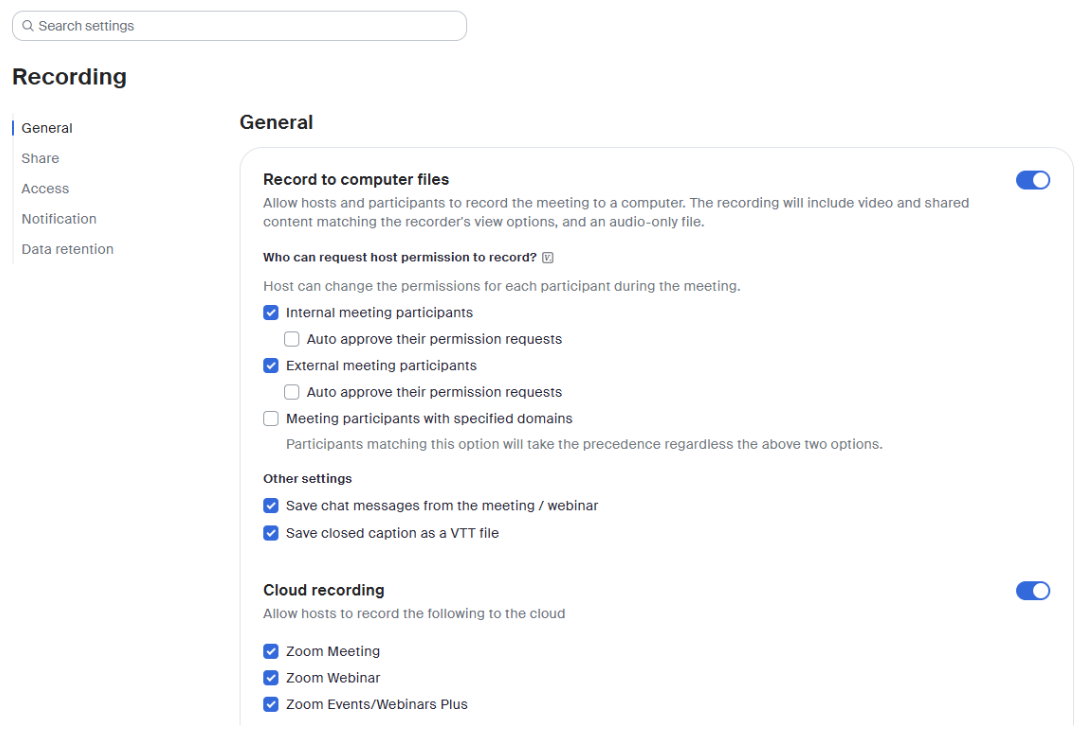
- From the vertical menu under settings, select "Recording."
- Ensure the following settings are enabled:
- Record to computer files
- Cloud recording
Step 3: Starting a Recorded Lecture
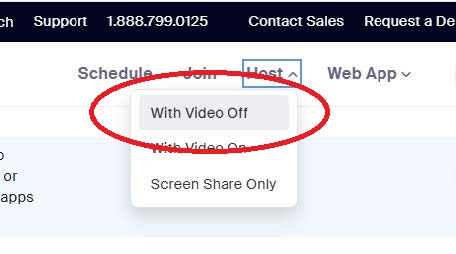
Important: You must access the "Host" link via the SUU Portal rather than starting a meeting directly in the Zoom Workplace app.
- Navigate to the upper right of the browser window and click "Host" followed by "With Video Off."
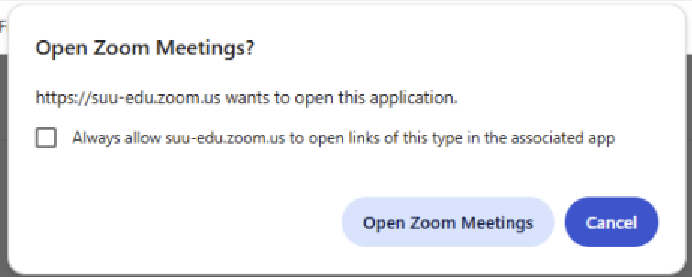
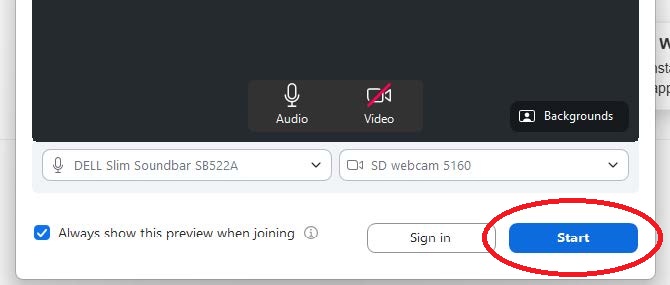
- When prompted by your browser, click "Open Zoom Meetings" and then click "Start" on the preview screen.
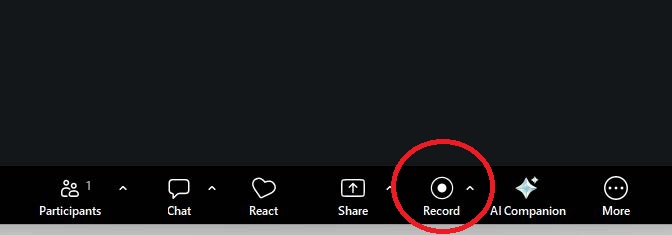
- Click the "Record" button at the bottom of the Zoom menu. (If not visible, check under "More").
- Select "Record to the cloud" when prompted.
Step 4: Accessing Your Recordings
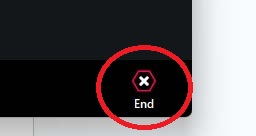
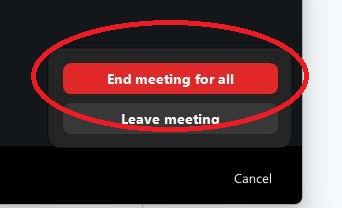
- To end the recording, simply end the meeting.
- Access your recordings and transcripts via the Zoom website through your SUU Portal by clicking "Sign in" and navigating to "Recordings & Transcripts" through your account.
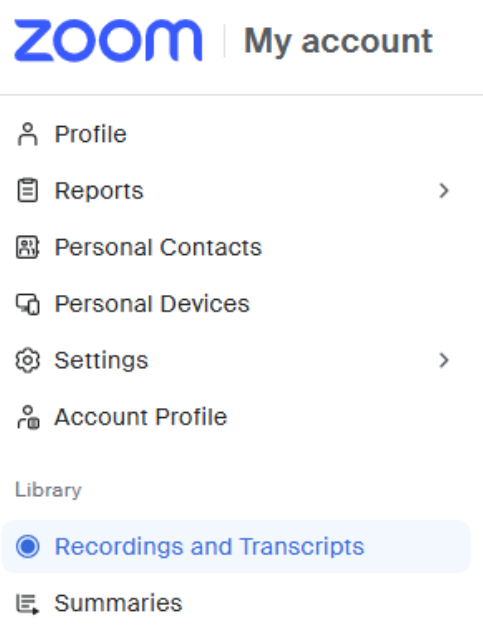
- Click on a recording thumbnail to playback, edit, or read the searchable AI summary and transcript. All recordings are timestamped and the names can be edited to reflect which course/session they are for.
Frequently Asked Questions
- Can I use the Zoom Workplace app to sign in? No, you must log in via the mySUU portal browser link to manage settings and access cloud recordings.
- What if Zoom is missing from my Resources menu? Contact IT support at (435) 865-8200 or manually enter https://suu-edu.zoom.us/ while logged into the portal.
- Can I use a mobile device? Yes, mobile devices work for recording, but initial setup is recommended on a computer.
Contact
Disability Resource Center